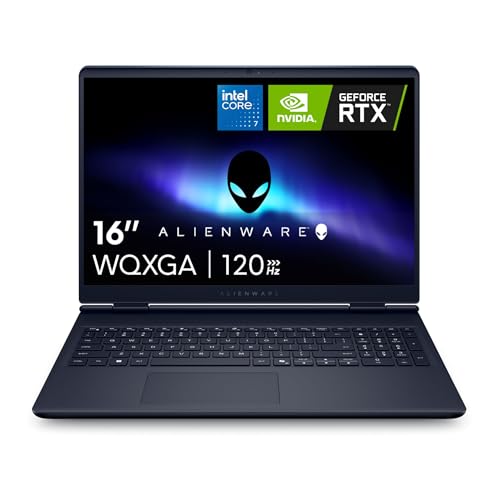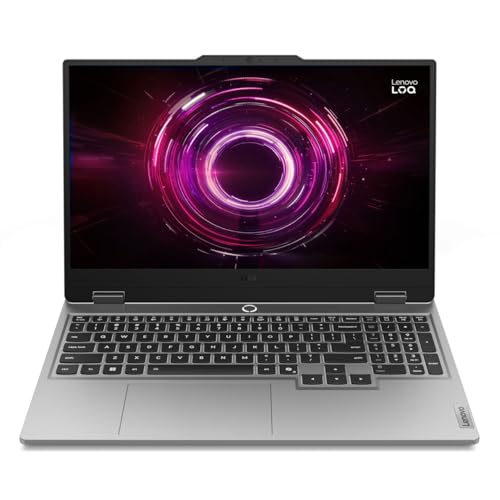


The Crosshair 16 HX makes sense for switching between competitive games and creative projects. The listed DCI-P3 coverage is relevant if you work in that color space, although coverage alone leaves calibration to check. Verify the 32GB configuration on this page if you need to keep large projects and several apps open at once.
Match settings to the game
A 240Hz panel can refresh more quickly than a standard 60Hz screen. That helps show small changes in motion when a game supplies enough frames. Competitive games are where the difference is most likely to matter. In a graphics-heavy title, choose a balance of image detail and steady motion that feels comfortable for the game.
See the gaming laptop guide to compare screen and graphics priorities.
The main reason to seek out the listed memory is a complex edit, large batch of photos or project that stays open while other tools run. If all you do is play one game at a time, the graphics and display combination matters more. Confirm the storage as well if you keep source footage or multiple games installed.
Before you buy
Check the selected listing for the exact graphics and display configuration. Laptop GPU names alone leave out details such as power limits. Those can matter when you compare two machines built around the same graphics chip.
What reviewers say
Tom’s Guide reviewed a version with 16GB of RAM and found that the screen kept fast motion clear and rendered colors accurately. The site also saw enough brightness for the display to work well in a lit room. Tom’s Guide liked the selection of ports and found the cooling system kept temperatures in check during play. The fans made that cooling easy to hear, according to Tom’s Guide, and the battery ran down quickly away from a charger. Those two drawbacks matter if you plan to use it in shared spaces or carry it between outlets.
Sources: Tom’s Guide