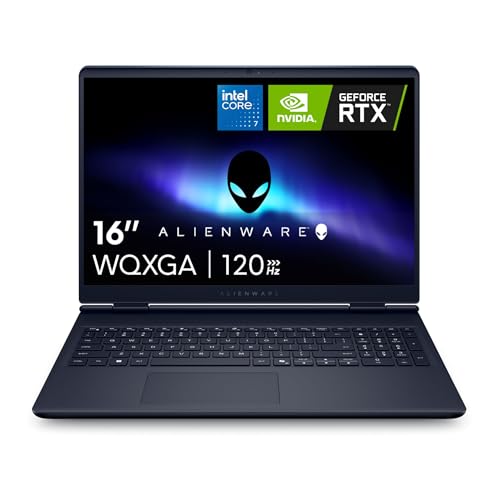


The Alienware 16 Aurora is for buyers who want sharper detail for games and enough workspace for editing. If native WQXGA proves demanding for a particular game, reduce effects or render resolution before deciding the machine is too slow. If you mostly play at a desk, choose a monitor resolution with that same tradeoff in mind.
If you use this as a creative computer, check display color coverage for the exact configuration before making it your only editing screen.
What to expect in games
When comparing game performance, use the resolution you actually plan to play at. More pixels increase the work for the GPU, and elaborate lighting or shadows can add further load. For quick multiplayer rounds, start with settings that produce consistent motion. For slower games, you may prefer sharper textures or more visual detail.
A 1TB drive gives you more freedom to keep several games installed beside current work. Allow space for updates, downloadable content and footage if you record gameplay. If you shuffle between a large collection of games, total your biggest installs and leave room for temporary files. A separate archive is useful for finished video projects you rarely reopen.
Before ordering, verify the screen and storage for the selected configuration. If you want to use an existing monitor or external drive, confirm that the laptop supports the connection and display settings you plan to use.
See the guide to laptop graphics to compare graphics options.
What reviewers say
PCWorld tested the Core 7 240H and RTX 5060 configuration. The site found the Alienware 16 Aurora well put together and found its gaming performance adequate. PCWorld liked the range of ports, including wired Ethernet for a desk setup. The site found the screen on its unit dim and noted that it lacked biometric sign-in. PCWorld’s observations make the chassis and connections easier to assess if you expect to split your time between a desk and working directly from the laptop.
Sources: PCWorld