
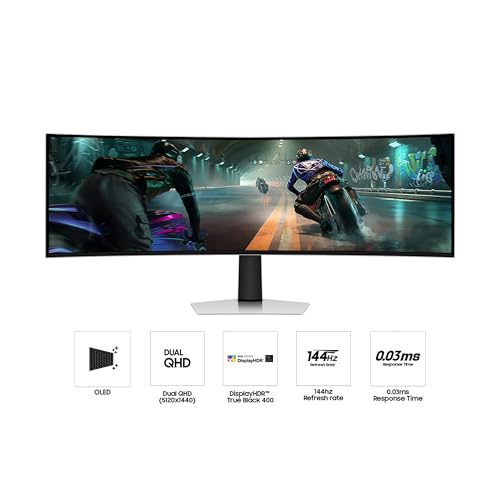


The G91SD makes sense if you want an OLED screen for games and enough horizontal room to keep an editing timeline and preview open together. Its QD-OLED pixels can switch off individually, so a dark area can stay dark beside a bright object. That is useful for seeing how night scenes or dark footage look. For work that will be printed or delivered to a client, check color coverage and calibration for your workflow.
The wide canvas makes the biggest difference in games that support it. In a racing sim, the extra space can show more of the cockpit and the road around you. In a game that expects a conventional widescreen, part of the panel may be unused. Check the games you play most, then look at whether your graphics card can keep their frame rates near 144Hz at 5120 x 1440. If you mainly play competitive titles and prioritize the highest refresh rate, compare faster displays in a smaller format.
Check the space and the coverage
Measure your desk width and depth with the keyboard and speakers in place. Check the store page for the stand dimensions, input options, and warranty terms for this exact model. If the screen spends much of the day showing fixed toolbars or the same spreadsheet layout, ask whether the warranty covers OLED burn-in and consider IPS for that routine. The guide to choosing a monitor for gaming and work covers the trade-offs when both uses share a desk.
What reviewers say
RTINGS found that the G91SD kept fast motion clear and responded quickly to inputs. The site noticed flicker in dark scenes when frame rates changed with variable refresh enabled. RTINGS also reported that bright highlights stood out against deep blacks in a dark room, but ambient light could give blacks a purple tint. For desktop use, RTINGS saw slight colored edges around letters. That may matter if you spend much of the day reading small text alongside your games or editing work.
Sources: RTINGS